AV receiver clipping, a common audio distortion, occurs when an amplifier is pushed beyond its maximum capacity, resulting in harsh, crackling, or fuzzy sound instead of clear audio. This issue can degrade your listening experience and potentially damage speakers. Fortunately, many clipping problems can be resolved with straightforward DIY adjustments, such as lowering the volume, correctly adjusting gain settings, verifying speaker impedance compatibility, optimizing crossover frequencies, checking source device output levels, and improving power connections.
This guide explains what AV receiver clipping is, why it occurs, and provides practical, fast DIY steps you can take today to restore pristine sound to your home theater. You don’t need to be an audiophile expert to implement these fixes; just a keen ear and a willingness to make a few simple tweaks.
Understanding AV Receiver Clipping: What It Is and Why It Matters
Clipping is a form of audio distortion that happens when an amplifier is pushed beyond its maximum capacity, attempting to produce an output signal stronger than its power supply allows. Imagine a smooth, rolling wave representing your audio signal. When clipping occurs, the tops and bottoms of these waves get “chopped off” or flattened, transforming them into a squared-off pattern. This fundamental alteration in the waveform is the root cause of the distorted sound you hear.
How Does Clipping Sound?
Identifying clipping is crucial for addressing it. The sound typically manifests as a harsh, crackling, fuzzy, or static-like distortion, especially noticeable during loud passages or dynamic peaks in music and movie soundtracks. Instead of a natural increase in volume, the sound becomes muddled and unpleasant. You might also notice a loss of dynamic range, where increasing the volume knob no longer makes the audio genuinely louder but only more distorted. In some cases, your AV receiver might even have a “clipping” indicator light that illuminates when this phenomenon is occurring.
Why Is Clipping Bad for Your System?
Beyond ruining your listening experience, clipping poses a significant threat to your audio equipment. The squared-off waveforms produced during clipping contain a high concentration of high-frequency energy. This excess energy, particularly at high volumes, can cause speakers—especially the delicate tweeters responsible for high frequencies—to overheat and sustain permanent damage. Over time, consistent clipping can lead to blown drivers, voice coil failure, and costly repairs or replacements for your speakers.
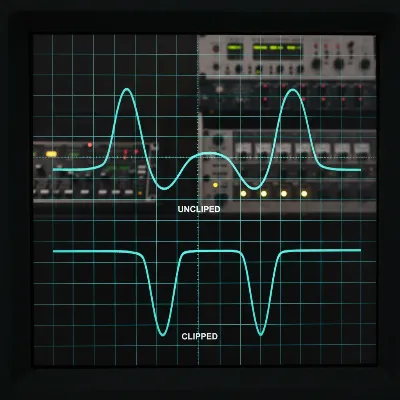 Visual representation of an audio waveform before and after clipping on an oscilloscope display.
Common Causes of AV Receiver Clipping
To effectively stop clipping, it’s important to understand its origins. Several factors can contribute to an AV receiver being pushed beyond its limits, leading to distorted audio. Often, it’s a combination of these elements rather than a single culprit.
Overdriving Your Receiver: The Volume Dial Trap
|
Our Picks for the Best AV Receiver in 2026
As an Amazon Associate I earn from qualifying purchases.
|
||
| Num | Product | Action |
|---|---|---|
| 1 | Denon AVR-X1700H 7.2 Channel AV Receiver - 80W/Channel, Advanced 8K HDMI Video w/eARC, Dolby Atmos, DTS:X, Built-in HEOS, Amazon Alexa Voice Control |

|
| 2 | Sony STRDH590 5.2 Multi-Channel 4k HDR AV Receiver with Bluetooth (Renewed) Bundle with 3 YR CPS Enhanced Protection Pack |
|
| 3 | Sony STRDH190 2-ch Home Stereo Receiver with Phono Inputs & Bluetooth Black |
|
| 4 | Onkyo TX-RZ30 9.2-Channel AV Receiver - 100 Watts Per Channel, Dirac Live Out of Box, Works with Sonos Certified, THX Certified and More |
|
| 5 | Sony STR-AN1000 7.2 CH Surround Sound Home Theater 8K A/V Receiver: Dolby Atmos, DTS:X, Digital Cinema Auto Calibration IX, Bluetooth, WiFi, Google Chromecast, Spotify connect, Apple AirPlay, HDMI 2.1 |
|
| 6 | Pyle 5.2 Channel Hi-Fi Home Theater Receiver - 1000W MAX Wireless BT Surround Sound Stereo Amplifier System with 4k Ultra HD Support, MP3/USB/DAC, Ideal for Immersive Home Audio Experience |
|
| 7 | YAMAHA RX-V385 5.1-Channel 4K Ultra HD AV Receiver with Bluetooth |
|
| 8 | Denon AVR-S570BT AV Receiver 5.2 Channel 8K Ultra HD Audio & Video, Stereo Receivers, Denon AVR Wireless Streaming Bluetooth, (4) 8K HDMI Inputs, eARC, HD Setup Assistant |
|
| 9 | Sony STRDH590 5.2 Channel Surround Sound Home Theater Receiver: 4K HDR AV Receiver with Bluetooth,Black |
|
| 10 | Denon AVR-X1800H 7.2 Channel AV Stereo Receiver - 80W/Channel, Wireless Streaming via Built-in HEOS, WiFi, & Bluetooth, Supports Dolby Vision, HDR10+, Dynamic HDR, & Home Automation Systems |
|
The most frequent cause of clipping is simply turning the volume up too high. While it’s tempting to blast your favorite tunes or experience cinematic explosions at their loudest, every AV receiver has a finite power output. When the amplifier is asked to produce more power than it can realistically deliver, it begins to clip the audio signal. This isn’t necessarily a sign of a weak receiver, but rather an indication that its current power capacity has been exceeded for the given demand.
Improper Gain Staging
Gain staging refers to setting the input sensitivity of your amplifier to match the output level of your source device (like a Blu-ray player, streaming device, or pre-amplifier). Many mistakenly treat the gain knob as a volume control, turning it up to achieve louder sound. However, if the gain is set too high, the amplifier will amplify an already strong input signal past its limits, causing clipping even at moderate master volume levels. Proper gain staging ensures that each component in your audio chain operates within its optimal range without unnecessarily boosting the signal.
Impedance Mismatch
Speakers have an electrical resistance called impedance, measured in ohms (Ω). AV receivers are designed to operate optimally with speakers within a specific impedance range (e.g., 6-16 ohms). If your speakers have a lower impedance than your receiver is designed to handle (e.g., connecting 4-ohm speakers to a receiver rated for 8 ohms minimum), the speakers will attempt to draw more current than the receiver can safely supply. This forces the receiver to work harder, generating excessive heat and significantly increasing the likelihood of clipping and potential damage to the receiver itself.
Insufficient Power Supply & Speaker Efficiency
An AV receiver needs a robust and stable power supply to deliver clean power to your speakers, especially during dynamic musical passages or loud action scenes. If the power supply is inadequate or the electrical wiring is insufficient (e.g., using very long, thin speaker wires), the receiver may struggle to meet the power demands, leading to clipping. Similarly, speaker efficiency plays a role: less efficient speakers require more power from the amplifier to produce the same volume as more efficient speakers. Pushing an amplifier to meet the demands of inefficient speakers can easily induce clipping.
High Input Signal Levels
Sometimes, the problem isn’t with the receiver or speakers, but with the source device itself. If a component like a CD player, DAC, or streaming device sends an excessively strong (or “hot”) audio signal to your AV receiver, it can overwhelm the receiver’s input stage. Even if your receiver’s volume is set modestly, this over-strong input can cause the signal to clip before it’s even amplified, resulting in distortion.
Poorly Mastered Audio
In some unfortunate instances, the clipping isn’t a fault of your equipment but originates in the audio recording itself. Many modern music tracks, particularly those affected by the “loudness war,” are intentionally compressed and mastered at very high levels, sometimes introducing clipping during the recording or production process. While your AV receiver can’t “un-clip” an already clipped recording, recognizing this as a potential cause can save you from unnecessary troubleshooting.
Fast DIY Solutions to Stop AV Receiver Clipping
Now that we understand the various causes, let’s dive into the practical DIY steps you can take to quickly identify and eliminate clipping from your AV receiver setup. These solutions are generally safe, require minimal tools, and can make a dramatic difference in your sound quality.
1. Turn Down the Volume: The Immediate Fix
This is the simplest and most immediate solution if you hear distortion. If your AV receiver is clipping, the first thing you should do is lower the master volume. Often, simply reducing the volume by a few notches can bring the amplifier back within its operating limits, instantly clearing up the sound. While it might seem obvious, many users habitually push their systems too hard without realizing the consequences. Make this your first troubleshooting step every time you encounter clipping.
2. Adjust Gain Settings Correctly
Proper gain staging is critical. Unlike a volume knob, the gain control on some amplifiers (or within your receiver’s setup menu for individual channels) matches the amplifier’s input sensitivity to your source device’s output.
- For AV Receivers: Most modern AV receivers handle gain staging automatically through their calibration systems (like Audyssey, YPAO, MCACC, or Dirac Live). Run or re-run this calibration process, ensuring you follow the instructions carefully. This typically involves setting your receiver’s master volume to a reference level (often around -10 dB or -15 dB) during the setup, and the calibration system will adjust individual channel levels accordingly.
- For External Amplifiers (if used): If you use external power amplifiers, you’ll need to set their gain. A common method involves playing a test tone (e.g., a 0 dB sine wave at 1 kHz) at a moderate volume from your source, then slowly increasing the amplifier’s gain until you hear distortion or see a clipping indicator light. Once you identify this point, back the gain off slightly until the distortion disappears or the light turns off. This ensures the amplifier is not overdriven by the input signal.
The goal is to set the gain just high enough so the amplifier can reach its maximum clean output with your source material, without exceeding it.
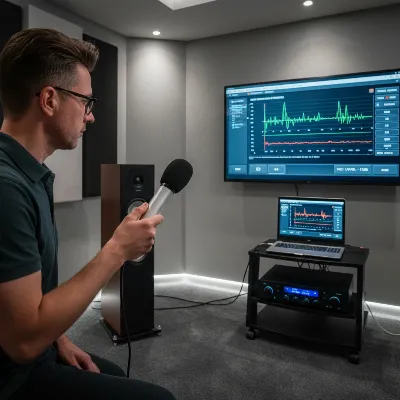 A person calibrating AV receiver gain settings with a microphone in a home theater setup.
3. Verify Speaker Impedance Compatibility
An impedance mismatch can silently stress your receiver.
- Check Your Speaker Specifications: Look for the nominal impedance rating, usually found on the back of the speaker or in its manual (e.g., 4 ohms, 6 ohms, 8 ohms).
- Check Your AV Receiver Specifications: Refer to your receiver’s manual for its recommended speaker impedance range. Many receivers are rated for 8-ohm speakers but can safely handle 6-ohm speakers. Some higher-end models might be stable down to 4 ohms.
- Adjust Receiver Settings (if available): Some AV receivers have a “speaker impedance” setting in their menu (e.g., 8-ohm or 4-ohm). While it’s generally recommended to leave this at its default (higher) setting unless you explicitly have 4-ohm speakers and the manual suggests otherwise, double-check it aligns with your speakers. Setting it lower can limit the receiver’s power output to protect it, but it might also reduce maximum volume before clipping. It’s often better to avoid the mismatch entirely.
- The Rule of Thumb: It’s generally safe to use speakers with an impedance higher than your receiver’s minimum rating (e.g., 8-ohm speakers on a 6-ohm rated receiver). However, using speakers with an impedance lower than the receiver’s minimum rating is risky and a common cause of clipping and damage. If you have 4-ohm speakers and an 8-ohm minimum receiver, consider replacing the receiver with a 4-ohm stable model or upgrading your speakers.
4. Optimize Crossover and Bass Management
If your main speakers are trying to reproduce deep bass frequencies that they’re not designed for, it puts unnecessary strain on your AV receiver’s amplifier channels, making clipping more likely. This is where proper bass management comes in, especially if you have a subwoofer.
- Set Speaker Sizes to “Small”: Even if your front speakers are physically large “tower” speakers, setting them to “Small” in your AV receiver’s setup menu is almost always recommended when you have a subwoofer. This tells the receiver to redirect low frequencies (below a certain crossover point) to your subwoofer instead of sending them to the main speakers.
- Adjust Crossover Frequencies: The crossover frequency determines at what point bass is handed off from your main speakers to your subwoofer. Common starting points are 80 Hz or 100 Hz. Experiment with this setting; a good rule of thumb is to set it slightly above the lowest frequency your main speakers can comfortably reproduce. This frees up your receiver’s main amplifier channels to focus on mid-range and treble, significantly reducing the chance of clipping.
5. Check Source Device Output Levels
If your input signal is too hot, it can overwhelm your receiver’s input stage.
- Review Source Device Settings: Check the audio output settings on your Blu-ray player, media streamer, or TV. Ensure they are not set to “boost” or abnormally high levels. For digital connections like HDMI, the signal level is typically fixed, but for analog connections (RCA), some devices might have adjustable output levels.
- Use “Pure Direct” or “Direct” Modes (with caution): While these modes bypass signal processing for the purest sound, they also bypass any volume limiting features. If your source signal is too strong, these modes might exacerbate clipping. Start with standard modes and ensure no clipping, then experiment with direct modes.
- Digital Volume Control: If you’re using a digital source, avoid running its internal digital volume control at 100% all the time, especially if the source itself has very loud output. It’s generally better to let the AV receiver handle the primary volume control.
6. Improve Your Power Connection (Basic DIY)
While complex power supply issues require professional intervention, you can ensure your receiver has a stable electrical foundation.
- Dedicated Wall Outlet: If possible, plug your AV receiver directly into a dedicated wall outlet, rather than sharing a power strip with many other high-draw devices.
- Quality Power Strip/Surge Protector: If a power strip is necessary, use a high-quality one with surge protection. Avoid cheap, flimsy power strips that might restrict current flow.
- Proper Speaker Wire Gauge: Ensure you’re using appropriate gauge speaker wire for the length of your runs. Longer runs or lower impedance speakers require thicker gauge wire to prevent power loss and signal degradation. For most home setups, 14-gauge wire is a good starting point, with 12-gauge or 10-gauge preferred for very long runs or demanding speakers.
7. Use Audio Normalization Software
For digital music files that you suspect are poorly mastered or pre-clipped, software can help.
- MP3Gain or ReplayGain: Tools like MP3Gain or features like ReplayGain found in many media players (e.g., Foobar2000) analyze your audio files and adjust their volume levels to a consistent target without introducing further compression or distortion. This can help prevent playback of excessively loud tracks that might otherwise cause your receiver to clip. While not a fix for the amplifier itself, it mitigates issues from the source material.
When to Call in a Pro or Upgrade Your Gear
Despite your best DIY efforts, some clipping issues might be symptoms of deeper problems that require professional help or a system upgrade.
- Persistent Clipping After All DIY Steps: If you’ve diligently applied all the above solutions and still experience clipping, especially at moderate listening levels, it might indicate a more fundamental mismatch between your AV receiver and speakers, or a fault within one of the components.
- Faulty Equipment: A defective amplifier, aging capacitors in the receiver’s power supply, or damaged speaker drivers can all lead to clipping. Diagnosing these requires specialized knowledge and tools.
- Underpowered Receiver: If your speakers are very inefficient or your listening space is large, your current AV receiver might simply be underpowered for your desired volume levels. In such cases, upgrading to a more powerful AV receiver or adding external power amplifiers might be the most effective long-term solution. When considering an upgrade, pay close attention to the receiver’s continuous power rating (RMS) and its ability to drive low-impedance loads if your speakers demand it.
> “Understanding your system’s limits is the first step to unlocking its full potential. Pushing past clipping not only sounds bad but is actively shortening the life of your gear.” – Joanne Doe, AV Receiver Specialist
Conclusion
AV receiver clipping is a common enemy of pristine home audio, but it’s an enemy you can often defeat with a few strategic DIY adjustments. By understanding what clipping is, recognizing its tell-tale signs, and systematically addressing its causes—from simply turning down the volume to optimizing gain settings, ensuring impedance matching, and fine-tuning bass management—you can significantly improve your sound quality and protect your valuable equipment.
The goal is clear, distortion-free sound, not just loudness for loudness’ sake. Take the time to properly set up and understand your AV system, and you’ll be rewarded with an immersive audio experience that truly brings your movies and music to life. What’s one DIY tip you’ll try first to stop clipping in your setup?
Frequently Asked Questions
What does AV receiver clipping sound like?
AV receiver clipping typically sounds like a harsh, distorted, crackling, or fuzzy noise, especially during loud musical passages or movie effects. It’s not a natural increase in volume but a breakup of the sound, making it unpleasant to listen to and signifying that the amplifier is overdriven.
Can clipping damage my speakers?
Yes, clipping can severely damage your speakers, particularly the tweeters. The squared-off waveforms produced during clipping generate excessive high-frequency energy and heat, which can overheat and eventually destroy speaker drivers if the problem persists at high volumes.
Is it better to have an underpowered or overpowered amplifier?
It is generally safer to have an amplifier that is slightly “overpowered” (meaning it has more power headroom than your speakers’ continuous power handling) than one that is significantly “underpowered.” An overpowered amplifier used responsibly is less likely to clip, whereas an underpowered amplifier pushed too hard will clip frequently and damage speakers.
How do I know if my AV receiver is properly matched with my speakers?
Check your speakers’ nominal impedance (e.g., 8 ohms) and your AV receiver’s minimum recommended impedance rating (also in ohms). Ensure your speakers’ impedance is not lower than your receiver’s minimum. Also, consider the speaker’s sensitivity (dB); lower sensitivity speakers require more power from the receiver to reach the same volume.
Can poor quality audio cables cause clipping?
While high-quality cables generally contribute to better signal transfer, poor quality cables are less likely to cause clipping directly unless they are severely damaged, extremely long, or of insufficient gauge for the power requirements. Instead, they are more likely to cause signal loss or introduce noise, rather than the amplifier distortion characteristic of clipping.

I was getting some really annoying crackling from my center channel, especially during loud action scenes. I thought my receiver was dying! After reading about optimizing crossover frequencies, I adjusted mine slightly and the difference is night and day. No more clipping, just clear dialogue. So glad I didn’t have to buy new equipment.
I tried a few of these tips, particularly verifying speaker impedance compatibility, but I’m still getting some mild distortion at higher volumes. It’s better than before, but not completely gone. Maybe my older receiver just can’t handle my current speaker setup. Still, it gave me some good things to check.
This guide was super helpful for understanding why my sound was getting fuzzy at higher volumes. I always just cranked it up, but realizing it was about pushing the amplifier too hard made sense. Lowering the volume a bit and checking my source device output levels really cleaned things up. My home theater sounds much better now.
My sound system was starting to sound really harsh, and I couldn’t figure out why. The section on improving power connections was a game-changer for me. I swapped out an old power strip for a dedicated surge protector and made sure all connections were snug. The clarity is back, and the bass feels tighter. Excellent advice!