Resetting your AV receiver to factory settings is a DIY solution that resolves many performance issues by restoring the unit to its original state. This process clears all user-defined settings, calibrations, and network connections, making it effective for troubleshooting erratic behavior, preparing for a sale, or starting fresh with a clean configuration. A factory reset typically takes only a few seconds to a couple of minutes, though the full re-setup can take 30 minutes to several hours.
What is an AV Receiver Reset and Why is it Necessary?
An AV receiver factory reset reverts all settings, calibrations, and configurations on your receiver back to their original manufacturer defaults. This action effectively wipes out all user-defined preferences, network connections, and any accumulated operational data. While it might seem drastic, performing a factory reset is often a crucial troubleshooting step and can resolve various persistent issues.
There are several compelling reasons why you might need to reset your AV receiver. Primarily, it’s a powerful tool for troubleshooting. If your receiver is exhibiting erratic behavior, such as audio dropouts, video signal issues, unresponsive controls, or connectivity problems (like Wi-Fi or Bluetooth glitches), a reset can clear software bugs or corrupted settings that might be causing the malfunction. If you’re upgrading components, moving to a new home, or simply want to start fresh with a clean configuration, a factory reset provides a blank slate. It’s also essential if you plan to sell your receiver, ensuring all your personal data and settings are erased before it changes hands.
Different Types of AV Receiver Resets
Not all resets are created equal, and understanding the distinctions can help you choose the appropriate action for your specific situation. Generally, there are two main types: a soft reset (or power cycle) and a hard reset (or factory reset).
A soft reset is the simplest form of reset, essentially akin to restarting a computer. It involves powering off your AV receiver, unplugging it from the wall for a few minutes (typically 1-5 minutes to allow residual power to dissipate), and then plugging it back in and powering it on. This can often clear temporary glitches or minor software hang-ups without erasing any of your personalized settings. It’s a good first step for minor, intermittent issues.
A hard reset, or factory reset, is a more profound action that wipes all user settings and restores the unit to its original factory condition. This is typically achieved by pressing specific button combinations on the receiver’s front panel while powering it on, or by navigating through a system menu using the remote control and an on-screen display. This type of reset is necessary for more serious, persistent problems or when you need a complete fresh start. While some advanced receivers might have a “service menu reset” for technicians, the button-combination or menu-driven factory reset is the most common and user-accessible method for DIY enthusiasts.
Step-by-Step Guide to Resetting Your AV Receiver
Performing a factory reset on your AV receiver is a straightforward process, but it requires careful attention to detail. Procedures can vary slightly between brands and models, so always refer to your specific owner’s manual if available. However, a general approach and common brand-specific examples can guide you.
General Pre-Reset Steps
|
Our Picks for the Best AV Receiver in 2026
As an Amazon Associate I earn from qualifying purchases.
|
||
| Num | Product | Action |
|---|---|---|
| 1 | Denon AVR-X1800H 7.2 Channel AV Stereo Receiver - 80W/Channel, Wireless Streaming via Built-in HEOS, WiFi, & Bluetooth, Supports Dolby Vision, HDR10+, Dynamic HDR, & Home Automation Systems |

|
| 2 | YAMAHA RX-V385 5.1-Channel 4K Ultra HD AV Receiver with Bluetooth |
|
| 3 | Sony STRDH590 5.2 Channel Surround Sound Home Theater Receiver: 4K HDR AV Receiver with Bluetooth,Black |
|
| 4 | Denon AVR-X1700H 7.2 Channel AV Receiver - 80W/Channel, Advanced 8K HDMI Video w/eARC, Dolby Atmos, DTS:X, Built-in HEOS, Amazon Alexa Voice Control |
|
| 5 | Onkyo TX-RZ30 9.2-Channel AV Receiver - 100 Watts Per Channel, Dirac Live Out of Box, Works with Sonos Certified, THX Certified and More |
|
| 6 | Sony STRDH590 5.2 Multi-Channel 4k HDR AV Receiver with Bluetooth (Renewed) Bundle with 3 YR CPS Enhanced Protection Pack |
|
| 7 | Sony STRDH190 2-ch Home Stereo Receiver with Phono Inputs & Bluetooth Black |
|
| 8 | Sony STR-AN1000 7.2 CH Surround Sound Home Theater 8K A/V Receiver: Dolby Atmos, DTS:X, Digital Cinema Auto Calibration IX, Bluetooth, WiFi, Google Chromecast, Spotify connect, Apple AirPlay, HDMI 2.1 |
|
| 9 | Pyle 5.2 Channel Hi-Fi Home Theater Receiver - 1000W MAX Wireless BT Surround Sound Stereo Amplifier System with 4k Ultra HD Support, MP3/USB/DAC, Ideal for Immersive Home Audio Experience |
|
| 10 | Denon AVR-S570BT AV Receiver 5.2 Channel 8K Ultra HD Audio & Video, Stereo Receivers, Denon AVR Wireless Streaming Bluetooth, (4) 8K HDMI Inputs, eARC, HD Setup Assistant |
|
Before initiating any reset, especially a hard reset, it’s crucial to prepare to minimize disruption and ensure a smooth re-setup process:
- Document Your Settings: Take photos or write down all your current settings, including speaker configurations (size, distance, levels), input assignments, network settings, sound modes, and any custom EQ adjustments. This information will be invaluable when reconfiguring your receiver.
- Disconnect Peripherals: Power off and disconnect all connected devices (Blu-ray players, gaming consoles, cable boxes, etc.) and speakers from your AV receiver. This prevents potential interference and simplifies the reset process.
- Power Off and Unplug: Turn off your receiver using its power button, then unplug it from the wall outlet. Wait for at least 60 seconds to ensure all internal components are fully discharged.
Common Reset Procedures
Most AV receiver factory resets involve a combination of holding down specific buttons on the front panel while powering the unit back on. The exact buttons vary by manufacturer.
-
Front Panel Button Combination:
- Ensure the receiver is off and unplugged (as per pre-reset steps).
- While holding down a specific combination of buttons (e.g., “STRAIGHT” and “INFO,” “TUNER” and “INPUT,” or two surround mode buttons), plug the receiver back in.
- Continue holding the buttons until a message like “INITIALIZED,” “CLEARING,” or “RESET” appears on the receiver’s front display.
- Release the buttons, and the receiver should complete the reset process, often cycling off and then on again.
-
Menu-Driven Reset (for newer models):
- For many modern receivers with on-screen display (OSD) menus, you can perform a factory reset via the system settings.
- Turn on your receiver and navigate to the “Setup,” “System,” or “Initialization” menu using your remote control and TV display.
- Look for an option like “Factory Reset,” “Initialize,” “Clear Settings,” or “System Reset.”
- Confirm your selection, and the receiver will begin the reset process.
Brand-Specific Examples
While exact buttons may differ by model, here are common procedures for popular brands:
- Yamaha: For many Yamaha models (especially pre-2020), turn the unit off. While holding down the “STRAIGHT” button, press the “Power” button. Continue holding “STRAIGHT” until “INIT” or “INITIALIZE” appears on the display. For newer models (2020+), you might also find “INITIALIZATION” under the “Function” menu via the remote control and external display, or by pressing “MENU (Connect)” on the front panel and navigating to “INITIALIZE.”
- Denon/Marantz: (These brands often share similar internal designs and reset procedures.) For many models, turn the unit off. Simultaneously press and hold two specific front panel buttons (e.g., “BACK” and “INFO,” or “TUNER PRESET CH -” and “TUNER PRESET CH +”). While holding these, press the “POWER” button. Release when “INITIALIZED” or “CLEARING” appears on the display.
- Sony: Turn the receiver off. Press and hold the “POWER” button on the receiver for approximately 5 seconds. The display should show “CLEARING” then “CLEARED *.”
- Onkyo: With the unit on, press and hold “CBL/SAT” (or another input selector) on the main unit while pressing the “ON/STANDBY” button. “Clear” should appear on the display, and the unit will enter standby mode.
> “Always double-check your owner’s manual for the most accurate and model-specific reset instructions. A quick search online with your model number and ‘factory reset’ can also yield precise guidance.” – Joanne, AV Receiver Expert
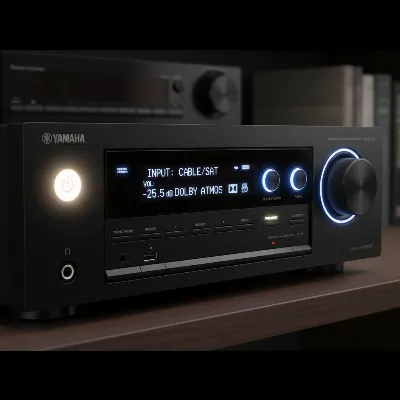 An AV receiver’s front panel with various buttons highlighted, indicating a common reset button combination.
Important Considerations Before and After Resetting
Performing a factory reset is a significant step, and there are several important aspects to consider both before and after the process to ensure a smooth transition and optimal performance.
Data Loss and Backup
The most critical consideration is that a factory reset will erase all custom settings. This includes your speaker configurations (distances, levels, crossover points), input names, network settings (Wi-Fi passwords, IP addresses), audio processing preferences, and any automatic calibration data (like Audyssey or YPAO results). While it’s a clean slate, it also means a complete re-setup is necessary. This is why documenting your settings beforehand is highly recommended; it saves considerable time and effort during reconfiguration. Unfortunately, most AV receivers do not offer a simple backup and restore feature for settings, making manual notation essential.
Re-calibration and Setup
After a factory reset, your AV receiver will behave as if it’s fresh out of the box. This means you will need to go through the initial setup wizard again. This typically involves:
- Connecting Speakers: Reconnecting all your speakers.
- Input Assignments: Re-assigning your HDMI and other inputs to their respective devices (e.g., “Blu-ray” to HDMI 1).
- Network Setup: Reconnecting to your home Wi-Fi network or plugging in an Ethernet cable.
- Automatic Room Calibration: Running the included auto-calibration system (e.g., Audyssey, YPAO, MCACC, Dirac Live) to optimize sound for your specific room and speaker placement. This step is crucial for achieving the best possible audio performance.
- Manual Adjustments: Fine-tuning any settings that the auto-calibration might not perfectly address, such as specific EQ curves or dynamic range compression preferences.
When a Reset Might Not Be Enough
While a factory reset is a powerful troubleshooting tool, it’s not a panacea for all AV receiver problems. If your receiver exhibits physical damage, persistent hardware failures (e.g., a specific port always fails, or a channel consistently produces no sound), or issues that reoccur immediately after a reset and complete re-setup, the problem might be hardware-related. In such cases, a professional repair service or warranty claim would be the next step. A reset focuses on software and configuration issues; it cannot fix a faulty component or a broken circuit board.
Troubleshooting Common Issues After a Reset
Even after a factory reset, you might encounter new challenges during the re-setup process. Don’t panic; many of these are common and easily resolved.
The most frequent issues after a reset include no sound or no video. If there’s no sound, first verify all speaker cables are correctly connected to the receiver and the speakers, paying attention to positive and negative terminals. Ensure the correct input source is selected on the receiver and that the TV’s input is also matched. Check the volume level, and confirm the receiver isn’t in “Mute” mode. If there’s no video, ensure HDMI cables are securely connected to both the receiver’s output and the TV’s input, and that input sources are correctly selected on both devices. Try bypassing the receiver to see if the video source directly to the TV works, which can help isolate the problem.
Network connectivity issues are also common. After a reset, you’ll need to re-enter your Wi-Fi password or confirm the Ethernet connection. If streaming services aren’t working, verify the network connection status in your receiver’s settings menu. Sometimes, restarting your home router and modem can resolve stubborn network problems. If remote control unresponsiveness occurs, check the batteries and ensure no obstructions are blocking the receiver’s IR sensor. A reset sometimes requires pairing specific smart remotes again. Finally, if the auto-calibration process fails or produces unsatisfactory results, ensure your microphone is correctly positioned (usually at ear height in the main listening position) and that the room is quiet during calibration. Rerunning the calibration several times can often yield better results.
Conclusion
Resetting your AV receiver to factory settings can feel like a daunting task, but it’s often the quickest and most effective way to resolve persistent performance issues, clear out old configurations, or prepare your unit for a new home. By carefully documenting your settings beforehand, understanding the specific reset procedure for your model, and patiently going through the re-setup and calibration process, you can breathe new life into your home theater system. A factory reset empowers you to tackle common technical glitches yourself, ensuring you continue to enjoy a pristine audio-visual experience.
Are you ready to give your AV receiver the fresh start it deserves?
Frequently Asked Questions
Will a factory reset fix all problems with my AV receiver?
A factory reset is highly effective for software-related glitches, corrupted settings, or connectivity issues. However, it cannot resolve hardware malfunctions, such as a faulty HDMI port or a damaged internal component.
Do I need my owner’s manual to perform a factory reset?
While many common procedures are similar across brands, consulting your specific owner’s manual or checking the manufacturer’s support website is always recommended for the most accurate, model-specific instructions to avoid unintended actions.
How long does an AV receiver factory reset take?
The actual reset process usually takes only a few seconds to a couple of minutes. However, the subsequent re-setup, including reconnecting devices, running auto-calibration, and fine-tuning settings, can take anywhere from 30 minutes to a few hours, depending on your system’s complexity.
What should I do if my receiver still has issues after a factory reset?
If problems persist after a factory reset and a complete re-setup, it indicates a potential hardware fault. In this situation, it’s best to contact the manufacturer’s customer support or a qualified AV technician for further diagnosis and repair.
Is it safe to perform a factory reset on my AV receiver?
Yes, a factory reset is a safe, built-in function designed to restore your receiver to its default operating state. The primary consequence is the loss of user-defined settings, requiring you to reconfigure the unit.
Frequently Asked Questions
Will a factory reset fix all problems with my AV receiver?
A factory reset is highly effective for software-related glitches, corrupted settings, or connectivity issues. However, it cannot resolve hardware malfunctions, such as a faulty HDMI port or a damaged internal component, which require professional repair.
Do I need my owner's manual to perform a factory reset?
While many common procedures are similar across brands, consulting your specific owner's manual or checking the manufacturer's support website is always recommended for the most accurate, model-specific instructions. This helps avoid unintended actions and ensures the correct button combinations are used.
How long does an AV receiver factory reset take?
The actual reset process usually takes only a few seconds to a couple of minutes. However, the subsequent re-setup, including reconnecting devices, running auto-calibration, and fine-tuning settings, can take anywhere from 30 minutes to a few hours, depending on your system's complexity.
What should I do if my receiver still has issues after a factory reset?
If problems persist after a factory reset and a complete re-setup, it indicates a potential hardware fault. In this situation, it's best to contact the manufacturer's customer support or a qualified AV technician for further diagnosis and repair, as a reset cannot fix physical damage.
Is it safe to perform a factory reset on my AV receiver?
Yes, a factory reset is a safe, built-in function designed to restore your receiver to its default operating state. The primary consequence is the loss of user-defined settings, requiring you to reconfigure the unit, but it will not damage the device.

I was having the worst time with my Denon receiver dropping audio channels randomly, and I thought it was a goner. Followed the steps here to do a factory reset and it totally fixed it! It was super easy and only took a few minutes to get back to default. Highly recommend trying this before you buy a new unit.
This guide was really helpful for getting my Yamaha receiver back in shape. I was getting some weird HDMI handshake issues and a reset cleared everything up. The only reason it’s not 5 stars is that the re-setup took me way longer than the 30 minutes mentioned, probably closer to two hours to get all my speakers calibrated again.
My Onkyo receiver was acting up, not connecting to my network. I tried the factory reset as suggested, and while it did clear the network settings, it didn’t actually fix the underlying problem. Still, the instructions were clear and easy to follow for the reset itself. Guess I have a bigger issue.
Needed to reset my Marantz receiver before selling it, and this was exactly what I needed. It walked me through clearing all the user-defined settings perfectly. The whole process was quick and straightforward, making it easy to prepare for the sale without any hassle.