Connecting an AV receiver to your TV for a DIY home theater setup is best achieved using an HDMI ARC/eARC connection, which simplifies cabling and supports high-quality audio. This process involves identifying the correct HDMI ports on both devices, connecting them with a high-speed HDMI cable (preferably HDMI 2.1 for eARC), and then configuring the TV and receiver settings to enable external audio output and HDMI-CEC. Following these steps ensures a safe, efficient, and immersive entertainment experience.
What is an AV Receiver and Why is it Essential for Your TV Setup?
An Audio/Video (AV) receiver acts as the central hub of your home entertainment system, processing and amplifying audio and video signals for your speakers and display. It serves as a command center, routing video from devices like Blu-ray players and gaming consoles to your television, and the corresponding audio to your speaker system. Without an AV receiver, managing multiple devices and achieving true surround sound quality for your TV content would be significantly more complicated.
The importance of an AV receiver in your TV setup is critical because modern TVs often have limited built-in sound quality due to their slim designs. An AV receiver provides dedicated amplification and advanced audio processing, delivering a dynamic, balanced, and immersive soundstage that elevates your TV viewing. It consolidates all your entertainment components, simplifying cable management and control, ensuring your television is part of a seamlessly integrated, high-performance home theater system. For shop curated diy home on this site.
Navigating AV Receiver Types for Optimal TV Connectivity
When selecting an AV receiver, understanding the different types, particularly how they relate to TV connectivity, is crucial. AV receivers are often categorized by the number of channels they support, which directly impacts the kind of surround sound experience you can achieve for your television content. Common configurations include 5.1, 7.1, and advanced setups like Dolby Atmos and DTS:X, which add height channels for a truly three-dimensional audio experience. For TVs that increasingly support these immersive formats, an AV receiver with adequate channel processing is key.
Beyond channel count, modern AV receivers offer a host of connectivity features vital for seamless integration with your television. Key among these are HDMI 2.0 and HDMI 2.1 ports, which support higher bandwidths for 4K and 8K video passthrough, as well as crucial features like HDMI ARC (Audio Return Channel) and eARC (Enhanced Audio Return Channel). ARC simplifies cabling by allowing your TV to send audio back to the receiver via the same HDMI cable used to send video to the TV, while eARC provides the necessary bandwidth for uncompressed, object-based audio formats like Dolby Atmos from your TV’s built-in apps. Many receivers also include wireless connectivity like Wi-Fi and Bluetooth, allowing for easy streaming from TV apps or mobile devices, further enhancing your integrated entertainment system.
Key Considerations When Choosing an AV Receiver for Your TV Connection
|
Our Picks for the Best AV Receiver in 2026
As an Amazon Associate I earn from qualifying purchases.
|
||
| Num | Product | Action |
|---|---|---|
| 1 | Sony STRDH190 2-ch Home Stereo Receiver with Phono Inputs & Bluetooth Black |

|
| 2 | Sony STRDH590 5.2 Multi-Channel 4k HDR AV Receiver with Bluetooth (Renewed) Bundle with 3 YR CPS Enhanced Protection Pack |
|
| 3 | Denon AVR-X1700H 7.2 Channel AV Receiver - 80W/Channel, Advanced 8K HDMI Video w/eARC, Dolby Atmos, DTS:X, Built-in HEOS, Amazon Alexa Voice Control |
|
| 4 | Onkyo TX-RZ30 9.2-Channel AV Receiver - 100 Watts Per Channel, Dirac Live Out of Box, Works with Sonos Certified, THX Certified and More |
|
| 5 | YAMAHA RX-V385 5.1-Channel 4K Ultra HD AV Receiver with Bluetooth |
|
| 6 | Denon AVR-X1800H 7.2 Channel AV Stereo Receiver - 80W/Channel, Wireless Streaming via Built-in HEOS, WiFi, & Bluetooth, Supports Dolby Vision, HDR10+, Dynamic HDR, & Home Automation Systems |
|
| 7 | Pyle 5.2 Channel Hi-Fi Home Theater Receiver - 1000W MAX Wireless BT Surround Sound Stereo Amplifier System with 4k Ultra HD Support, MP3/USB/DAC, Ideal for Immersive Home Audio Experience |
|
| 8 | Sony STR-AN1000 7.2 CH Surround Sound Home Theater 8K A/V Receiver: Dolby Atmos, DTS:X, Digital Cinema Auto Calibration IX, Bluetooth, WiFi, Google Chromecast, Spotify connect, Apple AirPlay, HDMI 2.1 |
|
| 9 | Denon AVR-S570BT AV Receiver 5.2 Channel 8K Ultra HD Audio & Video, Stereo Receivers, Denon AVR Wireless Streaming Bluetooth, (4) 8K HDMI Inputs, eARC, HD Setup Assistant |
|
| 10 | Sony STRDH590 5.2 Channel Surround Sound Home Theater Receiver: 4K HDR AV Receiver with Bluetooth,Black |
|
Selecting the right AV receiver for your television connection involves more than just plugging in cables. A thoughtful approach ensures that your system not only works flawlessly but also delivers the immersive experience you desire.
Power Output and Speaker Compatibility
The power output of an AV receiver, measured in watts per channel, dictates its ability to drive your speakers effectively. When pairing with your TV setup, consider the size of your viewing room and the power requirements of your speakers. A receiver delivering around 100 watts per channel is typically sufficient for most home theaters, ensuring clear sound with minimal distortion. Always match the impedance (ohms) of your speakers to be greater than or equal to that of the receiver to prevent damage and ensure optimal performance.
Channel Count and Immersive Audio
The number of channels an AV receiver supports directly correlates with the immersive audio experience you can achieve from your TV. For a basic surround sound, a 5.1 channel receiver (five speakers and one subwoofer) is a good starting point. However, to fully experience object-based audio formats like Dolby Atmos or DTS:X from 4K/8K content on your TV, you’ll need a receiver with more channels, such as 7.1.2 or 9.2.4 (where the last number indicates height channels), allowing sound to move around and above you for a truly captivating experience.
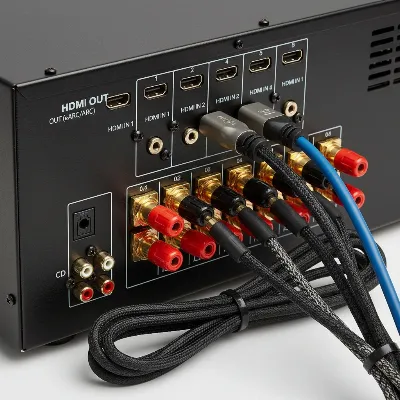 A close-up shot of the rear panel of an AV receiver with various color-coded ports and connected HDMI and speaker cables, emphasizing organized connections for a home theater setup, realistic style.
Connectivity Options: Focus on HDMI
HDMI is the cornerstone of modern AV receiver to TV connections. Prioritize an AV receiver with multiple HDMI inputs and at least one HDMI output labeled “ARC” or “eARC” (Enhanced Audio Return Channel). HDMI 2.1 ports are essential for future-proofing, supporting 8K video and 4K at 120Hz, as well as advanced gaming features from your TV. For older TVs or devices, ensure the receiver also offers optical digital audio or RCA analog inputs. Wireless options like Bluetooth and Wi-Fi enable convenient audio streaming from your TV’s smart apps or other devices.
Advanced Features for Enhanced TV Experience
Beyond basic connections, look for features that enhance your TV viewing. These include 4K/8K passthrough and HDR (High Dynamic Range) support to ensure the highest video quality from your source passes seamlessly to your TV. Video upscaling can improve the picture quality of lower-resolution content on a high-definition screen. Multi-zone capabilities allow you to enjoy different audio (and sometimes video) in separate rooms, meaning you could be watching a movie on your main TV while someone else listens to music in another zone, all powered by the same receiver.
Reputable Brands for Reliable TV Integration
Choosing an AV receiver from a reputable brand can offer peace of mind regarding reliability, performance, and long-term support. Industry leaders like Denon, Marantz, Sony, Onkyo, and Yamaha are consistently praised for their robust features, sound quality, and strong TV integration capabilities. While specific models vary in features and price, these brands generally offer excellent options across different budget ranges, ensuring a reliable connection for your home theater setup.
Top AV Receivers for Seamless TV Home Theater Experiences: A Comparison
Choosing an AV receiver that perfectly integrates with your TV is paramount for a superior home theater experience. Here’s a comparison of some leading models renowned for their connectivity and performance, focusing on features crucial for TV integration.
| Model | Channels | HDMI 2.1 Inputs | eARC Support | Dolby Atmos/DTS:X | 8K Passthrough | Key TV Connectivity Features | Price Range |
|---|---|---|---|---|---|---|---|
| Denon AVR-X2800H | 7.1 | 3 | Yes | Yes | Yes | Excellent entry point, 40Gbps bandwidth for 4K/120Hz, VRR, ALLM. | Mid |
| Sony STR-AN1000 | 7.1 | 6 | Yes | Yes | Yes | Supports 360 Reality Audio, 360 Spatial Sound Mapping, comprehensive HDMI 2.1. | Mid |
| Marantz Cinema 50 | 9.4 | 6 | Yes | Yes | Yes | IMAX Enhanced, impressive auto calibration, robust dynamics. | High |
| Onkyo TX-RZ50 | 9.2 | 3 | Yes | Yes | Yes | Dirac Live room correction included, strong audio performance, dedicated gaming features. | Mid-High |
| Yamaha RX-V6A | 7.2 | 7 | Yes | Yes | Yes | MusicCast multi-room audio, solid 8K HDMI support, good for both music and movies. | Mid |
This table highlights that modern AV receivers, especially those in the mid to high range, prioritize HDMI 2.1 with eARC for optimal TV connectivity, ensuring support for the latest video resolutions and immersive audio formats from your television. Models like the Marantz Cinema 50 also offer advanced calibration systems that optimize the audio output specifically for your room’s acoustics, creating a tailored sound experience for your TV content.
Your DIY Guide to Safely Connecting Your AV Receiver to Your TV
Connecting your AV receiver to your TV doesn’t have to be daunting. Follow these steps for a safe and effective DIY setup.
Pre-Connection Checklist and Safety First
Before you begin, gather all necessary components: your AV receiver, TV, a high-speed HDMI cable (preferably HDMI 2.1 for eARC and 8K/4K@120Hz support), speaker wires, and any other source device cables. Crucially, always turn off and unplug both your TV and AV receiver from the power outlet before making any connections. This critical safety step prevents electrical shocks and potential damage to your equipment. Refer to your owner’s manuals for specific port locations and settings if unsure.
Connecting via HDMI ARC/eARC (Recommended Method)
HDMI ARC (Audio Return Channel) or eARC (Enhanced Audio Return Channel) is the preferred method for connecting your AV receiver to your TV due to its simplicity and high-quality audio transmission.
- Identify ARC/eARC Ports: On your TV, locate an HDMI input usually labeled “HDMI ARC” or “eARC/ARC.” On your AV receiver, find the HDMI output typically labeled “HDMI OUT (ARC)” or “MONITOR OUT (eARC).”
- Connect the HDMI Cable: Using a single high-speed HDMI cable (HDMI 2.0 or higher for ARC, HDMI 2.1 for eARC), connect the HDMI ARC/eARC output on your AV receiver to the corresponding HDMI ARC/eARC input on your TV. Ensure the cable is securely inserted into both ports.
- Connect Source Devices: Plug all your other source devices (Blu-ray player, gaming console, streaming box, cable box) directly into the HDMI inputs on your AV receiver. The receiver acts as the central hub, simplifying connections and allowing it to process all audio and video signals.
Alternative Connections (Optical Digital Audio, RCA)
If your TV or AV receiver does not support HDMI ARC/eARC, alternative connections are available, though they might require separate cables for audio and video.
- Optical Digital Audio (TOSLINK): This is a good alternative for transmitting digital audio from your TV to your receiver. Connect an optical cable from your TV’s “Optical Out” port to an “Optical In” port on your receiver. For video, you would typically use a separate HDMI cable (if available) or component/composite video cables from your source devices directly to the TV.
- Analog Audio (RCA): For older equipment, you might use red and white RCA cables for analog stereo audio. Connect the “Audio Out” (red and white) ports on your TV to the “Audio In” ports (red and white) on your receiver. You’ll need separate video cables (e.g., HDMI, component, composite) for the video signal.
Configuring Your TV and AV Receiver Settings
Once the physical connections are made, you’ll need to configure the settings on both your TV and AV receiver.
- Power On Devices: Plug in and power on your AV receiver, then your TV.
- TV Audio Output: On your TV, navigate to the audio settings menu. Look for an option to change the audio output from “TV Speakers” to an external audio system or “HDMI ARC/eARC.” You may also need to set the audio format to “Bitstream,” “Auto,” or “Passthrough” for surround sound.
- Enable HDMI-CEC: Most modern TVs and AV receivers have a feature called HDMI-CEC (Consumer Electronics Control). This allows devices connected via HDMI to communicate and control each other, enabling functionalities like turning on/off together or controlling the receiver’s volume with your TV remote. Enable this feature in your TV’s settings (often named “BRAVIA Sync” for Sony, “AnyNet+” for Samsung, “SimpLink” for LG, or “HDMI Control” on your receiver).
- Select Input on Receiver: On your AV receiver, select the HDMI input that corresponds to your TV connection (e.g., “TV,” “HDMI IN,” or the specific HDMI port number you used).
- Test and Adjust: Play some content on your TV to verify that audio is coming through your AV receiver’s speakers. Adjust volume levels and run your receiver’s automatic room calibration system (if available) for optimal sound.
> “The single most common mistake when connecting an AV receiver to a TV is neglecting to enable ARC/eARC and HDMI-CEC in the settings. These features are designed to simplify your life, so always make sure they’re activated on both devices.” – Joanne Tech, AV Receiver Expert
Troubleshooting Common AV Receiver to TV Connection Problems
Even with careful setup, you might encounter issues. Here are common problems and their DIY solutions:
-
No Sound from Speakers:
- Check Cables: Ensure all HDMI cables are securely plugged into the correct ARC/eARC ports on both the TV and receiver.
- TV Audio Settings: Verify your TV’s audio output is set to “HDMI ARC/eARC” or “External Speakers,” not “TV Speakers”. Also check the audio format (Bitstream, Auto, Passthrough).
- Receiver Input: Confirm the AV receiver is set to the correct input source for your TV (e.g., “TV” or the specific HDMI port).
- Volume Levels: Make sure the volume is not muted or set too low on either the TV or the receiver.
- Firmware: Outdated firmware on either device can cause issues. Check for and install the latest firmware updates.
-
Poor Sound Quality or Audio Dropouts:
- HDMI Cable Quality: For eARC and advanced audio formats like Dolby Atmos, a certified High-Speed HDMI cable (HDMI 2.0+) or Ultra High-Speed HDMI cable (HDMI 2.1) is essential. Cheap or old cables might lack the bandwidth.
- Audio Format Mismatch: Ensure your TV’s audio output format is compatible with what your receiver can decode.
- Speaker Connections: Verify all speaker wires are correctly connected to the receiver (red to red, black to black) and speakers. Loose or frayed wires can cause issues.
-
Video Issues (No Signal, Flickering Screen):
- HDMI Cables: Inspect HDMI cables for damage. Try swapping with a known good cable.
- Input Selection: Ensure the correct HDMI input is selected on your TV for the receiver’s output, and the correct input is selected on the receiver for your source device.
- Resolution/Refresh Rate: Ensure your TV and receiver settings for resolution and refresh rate are compatible.
-
Lip-Sync Issues (Audio Lagging Video):
- TV and Receiver Settings: Many TVs and receivers have an “Audio Delay” or “Lip Sync” adjustment in their settings. Experiment with these.
- Cable Quality: High-quality HDMI cables can help reduce lag.
- Power Cycle: Turn off both the TV and AV receiver, unplug them for 30 seconds, then plug them back in and power them on. This can reset the HDMI handshake.
Conclusion
Connecting your AV receiver to your TV is a transformative step towards achieving a truly immersive home theater experience. By understanding the role of your receiver as the central hub, choosing the right type with essential connectivity features like HDMI ARC/eARC, and following a methodical DIY approach, you can unlock superior audio and video quality from all your entertainment sources. It is important to prioritize safety by powering down devices during connection and to configure your settings correctly for seamless operation. With this guide, you’re now equipped to enjoy your favorite movies, music, and games with unparalleled sound and picture.
Frequently Asked Questions
Do I need a special HDMI cable for ARC/eARC?
For basic ARC functionality, a standard high-speed HDMI cable (HDMI 1.4 or higher) should suffice. However, for eARC, which carries higher bandwidth and uncompressed audio formats like Dolby Atmos, it is highly recommended to use a certified High-Speed HDMI cable (HDMI 2.0 or 2.0b) or an Ultra High-Speed HDMI cable (HDMI 2.1) to ensure optimal performance and prevent issues.
Can I connect my TV to an AV receiver without HDMI?
Yes, you can. If your TV or AV receiver lacks HDMI, you can use an optical digital audio (TOSLINK) cable for audio from your TV to the receiver. For video, you would typically use separate component or composite video cables from your source devices directly to the TV, or from the receiver to the TV if the receiver has video switching for these older formats.
Why am I getting no sound from my AV receiver after connecting to TV?
Several factors can cause a lack of sound. First, double-check that your HDMI cable is securely connected to the ARC/eARC ports on both devices. Next, verify that your TV’s audio output is configured to send audio to “HDMI ARC/eARC” or “External Speakers” in its settings, and that the AV receiver is on the correct input. Also, ensure the volume is not muted on either device and consider updating firmware.
What is HDMI-CEC and how does it help?
HDMI-CEC (Consumer Electronics Control) is a feature that allows devices connected via HDMI to control each other. When enabled on both your TV and AV receiver, it allows for convenient functions like powering on/off simultaneously, controlling the receiver’s volume with your TV remote, and automatic input switching. This streamlines your home theater operation, reducing the need to juggle multiple remotes.

This was exactly what I needed to finally get my gaming console audio routed properly through my receiver. The explanation of the AV receiver as a ‘central hub’ really clicked for me. My games sound so much more immersive now, and the video quality is fantastic.
The advice on using a high-speed HDMI 2.1 cable for eARC was spot on for future-proofing my system. However, I found that identifying the correct HDMI ports on my older TV was a bit more confusing than described. It took some trial and error to get it right, but eventually, I got my audio working.
I always struggled with getting my sound right, but using the HDMI ARC/eARC connection really made a difference. The steps for connecting my AV receiver to the TV were super clear and easy to follow. My home theater setup sounds incredible now, and I love how much simpler the cabling is.
I followed the guide to connect my new Denon receiver to my Samsung TV. The instructions for configuring the TV and receiver settings were particularly helpful, as that’s where I usually get stuck. Everything works great, though I wish there was a bit more detail on troubleshooting specific HDMI-CEC issues.