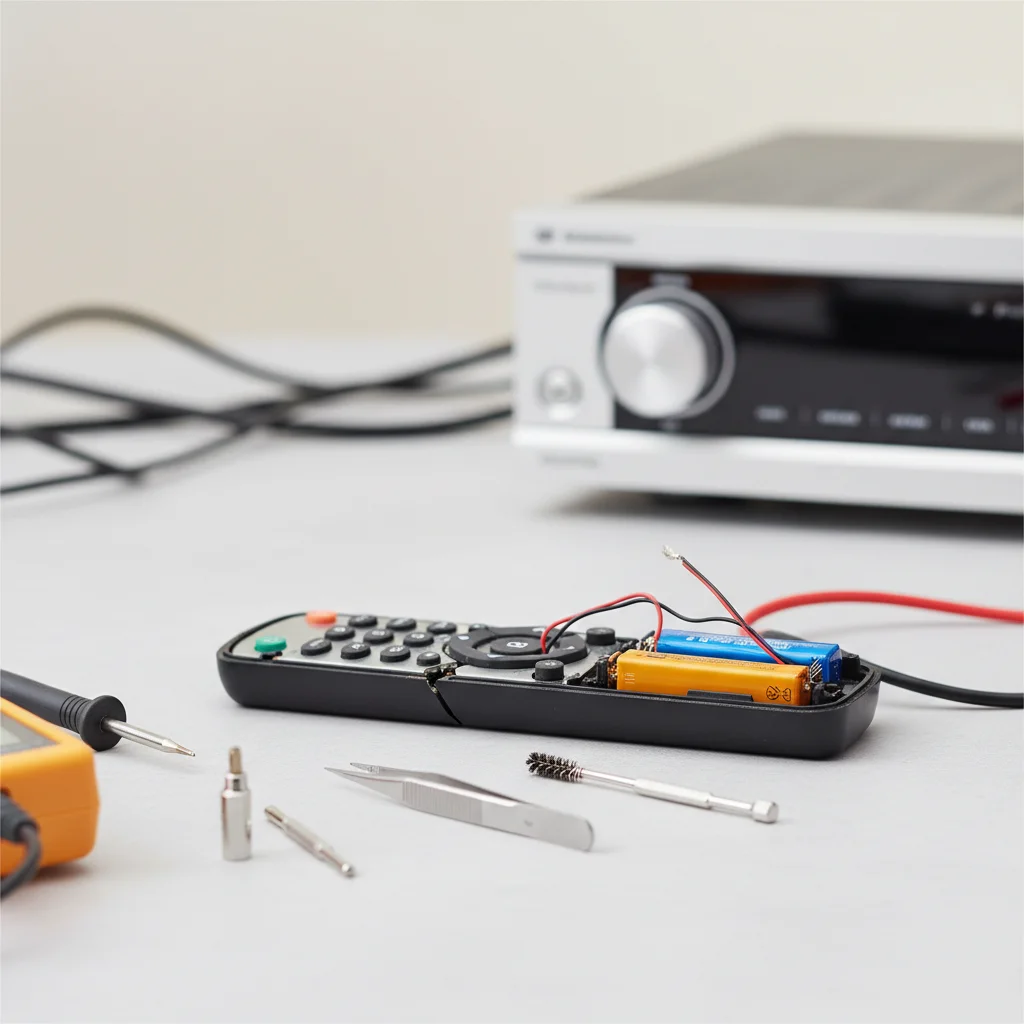
If your AV receiver remote isn’t working, the most common culprits are dead batteries, line-of-sight obstructions, or a simple mode mismatch. You can often resolve the issue with five straightforward DIY troubleshooting steps.
A malfunctioning remote can be incredibly frustrating, especially when you’re trying to enjoy your home theater. Before you consider replacing your remote or even your receiver, there are several easy checks you can perform to diagnose and fix the problem.
Check and Replace Batteries
The first and most obvious step is to check the batteries. Many users overlook this simple solution. Remove the existing batteries and replace them with a fresh set of high-quality alkaline batteries. Ensure they are inserted with the correct polarity (+/-). Even if the remote occasionally flashes an LED, weak batteries might not be providing enough power for full functionality.
If your remote uses rechargeable batteries, ensure they are fully charged. Sometimes, older rechargeable batteries lose their capacity and may need to be replaced entirely.
Inspect for Obstructions and Line of Sight
Infrared (IR) remotes require a clear line of sight between the remote’s emitter and the receiver’s IR sensor. Check for any physical obstructions between you and your AV receiver. This could be anything from furniture to decorative items. Ensure the receiver’s IR sensor isn’t blocked or covered.
Also, consider the distance and angle. While most remotes have a decent range, being too far away or at an extreme angle can sometimes prevent the signal from reaching the receiver effectively. Try moving closer and pointing the remote directly at the receiver’s front panel.
Verify Remote Mode and Settings
|
Our Picks for the Best AV Receiver in 2026
As an Amazon Associate I earn from qualifying purchases.
|
||
| Num | Product | Action |
|---|---|---|
| 1 | Sony STRDH590 5.2 Channel Surround Sound Home Theater Receiver: 4K HDR AV Receiver with Bluetooth,Black |

|
| 2 | Denon AVR-S570BT AV Receiver 5.2 Channel 8K Ultra HD Audio & Video, Stereo Receivers, Denon AVR Wireless Streaming Bluetooth, (4) 8K HDMI Inputs, eARC, HD Setup Assistant |
|
| 3 | Denon AVR-X1800H 7.2 Channel AV Stereo Receiver - 80W/Channel, Wireless Streaming via Built-in HEOS, WiFi, & Bluetooth, Supports Dolby Vision, HDR10+, Dynamic HDR, & Home Automation Systems |
|
| 4 | Sony STRDH190 2-ch Home Stereo Receiver with Phono Inputs & Bluetooth Black |
|
| 5 | Sony STR-AN1000 7.2 CH Surround Sound Home Theater 8K A/V Receiver: Dolby Atmos, DTS:X, Digital Cinema Auto Calibration IX, Bluetooth, WiFi, Google Chromecast, Spotify connect, Apple AirPlay, HDMI 2.1 |
|
| 6 | Pyle 5.2 Channel Hi-Fi Home Theater Receiver - 1000W MAX Wireless BT Surround Sound Stereo Amplifier System with 4k Ultra HD Support, MP3/USB/DAC, Ideal for Immersive Home Audio Experience |
|
| 7 | Denon AVR-X1700H 7.2 Channel AV Receiver - 80W/Channel, Advanced 8K HDMI Video w/eARC, Dolby Atmos, DTS:X, Built-in HEOS, Amazon Alexa Voice Control |
|
| 8 | Onkyo TX-RZ30 9.2-Channel AV Receiver - 100 Watts Per Channel, Dirac Live Out of Box, Works with Sonos Certified, THX Certified and More |
|
| 9 | Sony STRDH590 5.2 Multi-Channel 4k HDR AV Receiver with Bluetooth (Renewed) Bundle with 3 YR CPS Enhanced Protection Pack |
|
| 10 | YAMAHA RX-V385 5.1-Channel 4K Ultra HD AV Receiver with Bluetooth |
|
Many universal or multi-device remotes have different modes (e.g., TV, Blu-ray, AV Receiver). Ensure your remote is set to the correct mode for controlling your AV receiver. There’s usually a dedicated button for this, often labeled “AVR” or “Receiver.”
If your remote has been programmed, it’s possible the programming has become corrupted or was incorrectly entered. Consult your receiver’s manual for instructions on how to reset the remote to its factory defaults or re-program it for your specific AV receiver model. This is especially relevant for universal remotes.
Clean the Remote’s IR Emitter and Receiver’s Sensor
Dust and grime can accumulate on the remote’s IR emitter (the small LED at the front) and the receiver’s IR sensor. Use a soft, dry cloth or a cotton swab lightly dampened with rubbing alcohol to gently clean both. Ensure no residue is left behind.
Sometimes, sticky buttons can also prevent proper signal transmission. If any buttons feel stuck or unresponsive, try cleaning around them with a cotton swab and a small amount of alcohol. Be careful not to let liquid seep into the remote’s internal components.
Perform a Soft Reset on Your AV Receiver
Just like any electronic device, your AV receiver can sometimes benefit from a soft reset. This can clear minor software glitches that might be preventing it from responding to remote commands. To perform a soft reset:
- Unplug your AV receiver from the wall outlet.
- Wait for at least 60 seconds.
- Plug the AV receiver back into the wall outlet.
- Try using the remote again.
This simple power cycle can often resolve communication issues between the receiver and its remote. If the remote still doesn’t work after these steps, you might consider purchasing a replacement remote or a universal remote.A good quality universal remote can often control multiple devices and might offer more advanced features than your original remote.

I was about to pull my hair out trying to figure out why my Denon remote stopped responding. The tip about checking for line-of-sight obstructions was a lifesaver! Turns out my cat had knocked a decorative vase right in front of the receiver’s IR sensor. Moved it, and everything’s back to normal. So simple, but I totally overlooked it.
The advice on checking batteries was spot on, that fixed my issue with the Yamaha remote. However, I wish there was a bit more detail on how to tell if the IR emitter itself is faulty. I had to do some extra digging online to confirm it wasn’t just the batteries. Still, good basic troubleshooting steps for common problems.
This saved me a service call! My Onkyo receiver remote suddenly quit, and I was dreading having to buy a new one. Following the steps, especially the part about checking for mode mismatches, solved it. I must have accidentally hit a button that switched it to TV mode. Now I can finally control my sound system again without getting up every two minutes.