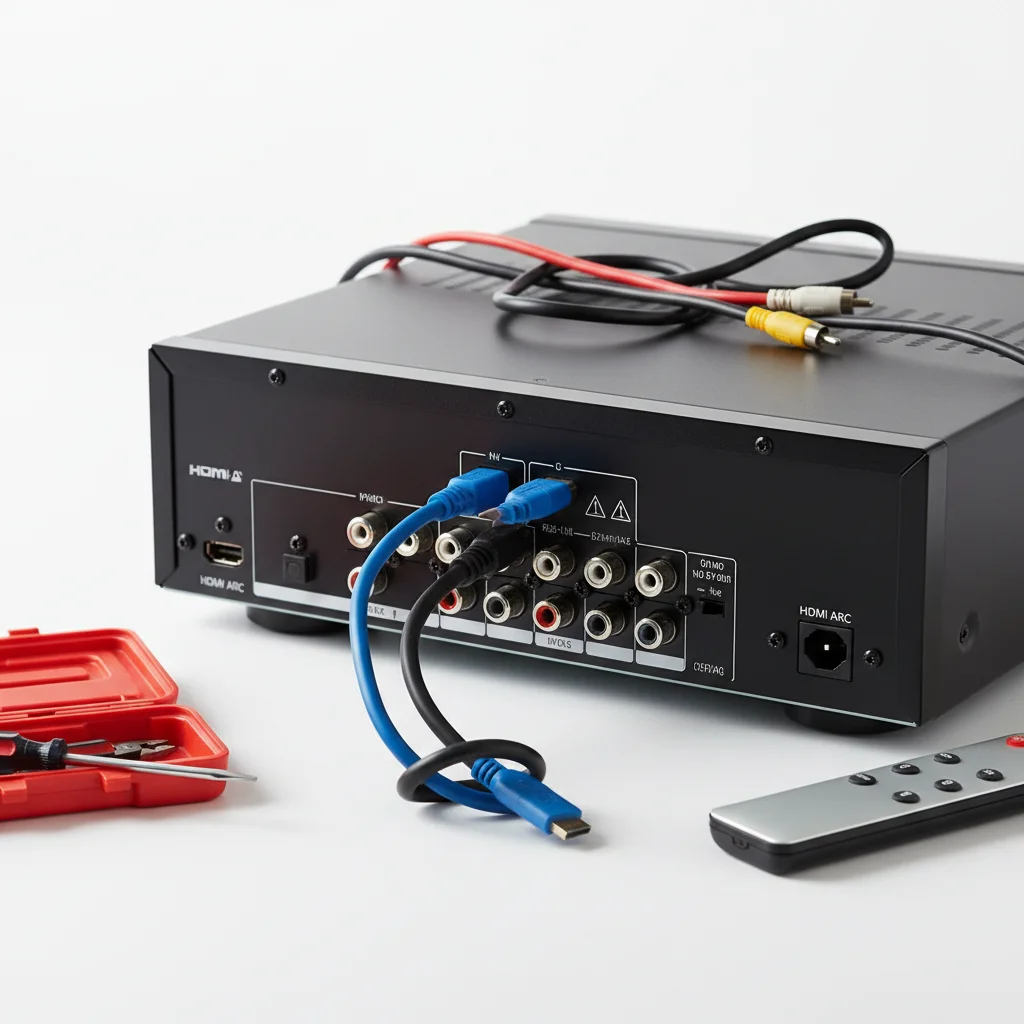
If your AV receiver’s HDMI ARC (Audio Return Channel) isn’t working, it’s a common issue that often has a simple solution. There are typically five main DIY fixes you can try to restore audio functionality between your TV and receiver, ranging from basic cable checks to more advanced settings adjustments. HDMI ARC is designed to simplify your home theater setup by allowing audio from your TV’s built-in apps or connected devices to be sent back to your AV receiver using a single HDMI cable, eliminating the need for a separate optical audio cable.
Check Your HDMI Cables and Ports
The first and most fundamental step is to inspect your HDMI cables and the ports they are connected to. Ensure you are using a high-speed HDMI cable, preferably one labeled “High-Speed HDMI with Ethernet” or “Ultra High-Speed HDMI,” as older or lower-quality cables may not fully support ARC functionality. Verify that the HDMI cable is securely plugged into the designated ARC or eARC HDMI port on both your TV and your AV receiver. These ports are usually clearly labeled. Try unplugging and re-plugging both ends of the cable. If possible, test with a different HDMI cable to rule out a faulty cable as the culprit. Also, ensure there’s no dust or debris obstructing the ports.
Power Cycle Your Devices
A simple power cycle can often resolve many electronic glitches, including ARC issues. Turn off your TV, AV receiver, and any other connected devices (like a streaming box or game console). Unplug all of them from the power outlet for at least 60 seconds. This allows the internal capacitors to fully discharge and can clear temporary software bugs. After waiting, plug everything back in, starting with the TV, then the AV receiver, and finally any other devices. Power them on and test the ARC connection again. This hard reset can often re-establish the communication handshake between the devices.
Verify HDMI-CEC Settings
|
Our Picks for the Best AV Receiver in 2026
As an Amazon Associate I earn from qualifying purchases.
|
||
| Num | Product | Action |
|---|---|---|
| 1 | YAMAHA RX-V385 5.1-Channel 4K Ultra HD AV Receiver with Bluetooth |

|
| 2 | Sony STRDH190 2-ch Home Stereo Receiver with Phono Inputs & Bluetooth Black |
|
| 3 | Sony STRDH590 5.2 Channel Surround Sound Home Theater Receiver: 4K HDR AV Receiver with Bluetooth,Black |
|
| 4 | Sony STR-AN1000 7.2 CH Surround Sound Home Theater 8K A/V Receiver: Dolby Atmos, DTS:X, Digital Cinema Auto Calibration IX, Bluetooth, WiFi, Google Chromecast, Spotify connect, Apple AirPlay, HDMI 2.1 |
|
| 5 | Denon AVR-S570BT AV Receiver 5.2 Channel 8K Ultra HD Audio & Video, Stereo Receivers, Denon AVR Wireless Streaming Bluetooth, (4) 8K HDMI Inputs, eARC, HD Setup Assistant |
|
| 6 | Denon AVR-X1800H 7.2 Channel AV Stereo Receiver - 80W/Channel, Wireless Streaming via Built-in HEOS, WiFi, & Bluetooth, Supports Dolby Vision, HDR10+, Dynamic HDR, & Home Automation Systems |
|
| 7 | Pyle 5.2 Channel Hi-Fi Home Theater Receiver - 1000W MAX Wireless BT Surround Sound Stereo Amplifier System with 4k Ultra HD Support, MP3/USB/DAC, Ideal for Immersive Home Audio Experience |
|
| 8 | Denon AVR-X1700H 7.2 Channel AV Receiver - 80W/Channel, Advanced 8K HDMI Video w/eARC, Dolby Atmos, DTS:X, Built-in HEOS, Amazon Alexa Voice Control |
|
| 9 | Sony STRDH590 5.2 Multi-Channel 4k HDR AV Receiver with Bluetooth (Renewed) Bundle with 3 YR CPS Enhanced Protection Pack |
|
| 10 | Onkyo TX-RZ30 9.2-Channel AV Receiver - 100 Watts Per Channel, Dirac Live Out of Box, Works with Sonos Certified, THX Certified and More |
|
HDMI-CEC (Consumer Electronics Control) is the underlying technology that enables ARC to function. Different manufacturers have different names for CEC (e.g., Sony’s Bravia Sync, Samsung’s Anynet+, LG’s SimpLink, Yamaha’s HDMI Control). You need to ensure that HDMI-CEC is enabled on both your TV and your AV receiver. Navigate to your TV’s settings menu, usually under “System,” “External Inputs,” or “Connections,” and look for the CEC option. On your AV receiver, this setting is typically found in the HDMI setup menu. Make sure it’s turned on for both devices. Sometimes, disabling and re-enabling CEC on both devices can also help reset the connection.
- Confirm HDMI-CEC is enabled on your TV.
- Verify HDMI Control is active on your AV receiver.
- Check for any specific ARC settings within your receiver’s menu.
- Ensure the correct HDMI input is selected on your receiver.
- Consider updating firmware if issues persist after other steps.
Update Firmware and Reset Settings
Outdated firmware can sometimes lead to compatibility issues, including problems with HDMI ARC. Check the manufacturer’s website for both your TV and AV receiver to see if there are any available firmware updates. Follow the instructions carefully to update your devices. If firmware updates don’t resolve the issue, or if you’ve made numerous setting changes, performing a factory reset on both your TV and AV receiver can be a last resort. This will revert all settings to their default state, which can often clear up persistent software conflicts. Remember to note down any custom settings before performing a reset.
Troubleshoot Specific Receiver ARC Settings
Beyond general CEC settings, some AV receivers have specific ARC-related configurations. Dive into your receiver’s audio or HDMI settings menu. Look for options like “HDMI Audio Out,” “ARC Mode,” or “TV Audio Input.” Ensure that the receiver is set to receive audio from the ARC input. Sometimes, the receiver might be defaulting to an optical input or another source. Also, confirm that the TV’s audio output is set to “External Speaker” or “Audio System” rather than its internal speakers. If your TV has an eARC port, ensure your receiver also supports eARC for the best performance, though standard ARC should still function.
