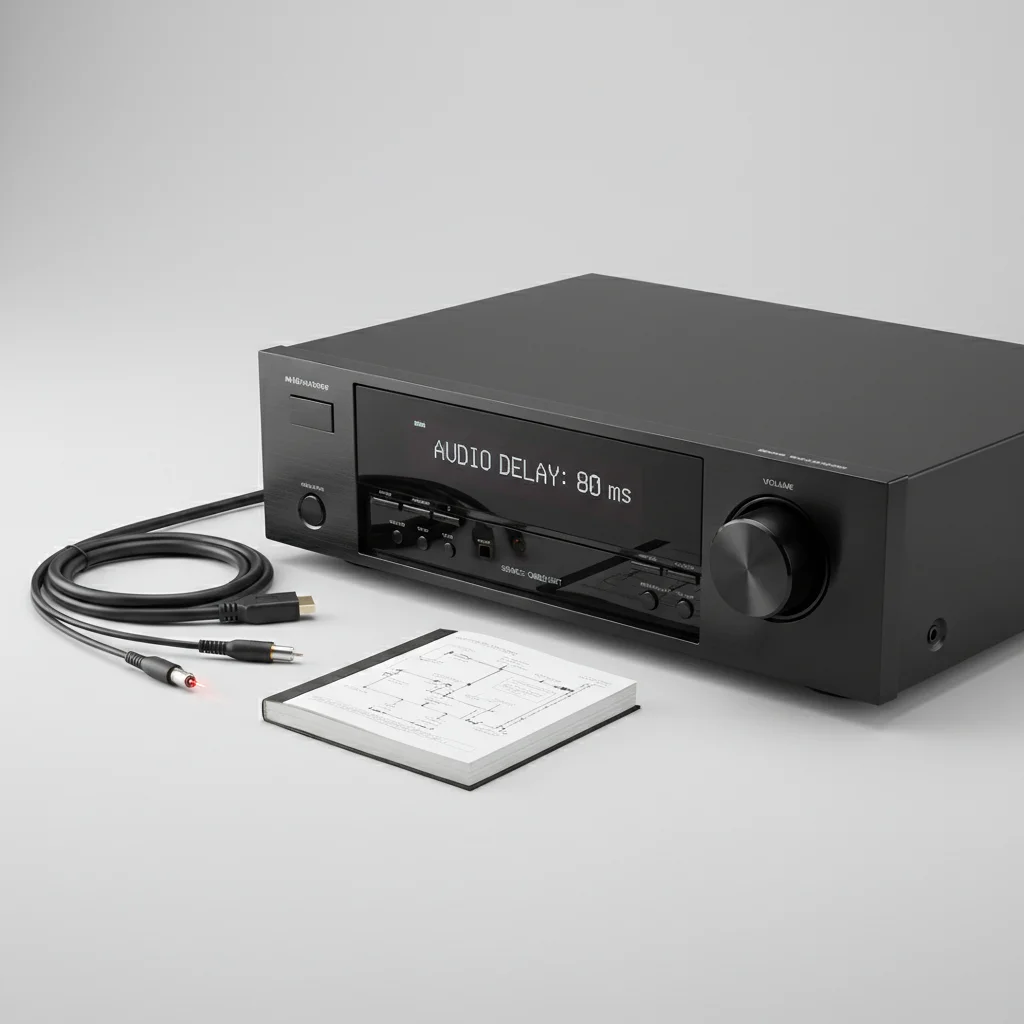
AV receiver audio delay, often referred to as lip-sync error, becomes noticeable and distracting when it exceeds approximately 40-50 milliseconds. While minor delays under this threshold are generally imperceptible to the human ear, anything beyond can lead to a disjointed viewing experience where dialogue doesn’t align with on-screen mouth movements, or sound effects lag behind visual cues. Understanding the causes and solutions for this delay is crucial for an immersive home theater.
Understanding Audio Delay in Home Theater Systems
Audio delay, or latency, is the time difference between when a video signal is displayed and when its corresponding audio signal is heard. In complex home theater setups involving multiple devices like an AV receiver, TV, source players (Blu-ray, streaming boxes), and speakers, various processing steps can introduce these delays. Each component in the signal chain, from video upscaling in the TV to audio decoding in the receiver, adds a tiny amount of processing time. When these times don’t align perfectly, you get a noticeable lag. For expert diy home reviews on this site.
Common culprits for audio delay include advanced video processing features on modern TVs, such as motion smoothing or HDR upscaling, which can take longer than the audio processing. Similarly, certain audio formats or room correction technologies within the AV receiver can also contribute. Identifying the source of the delay is the first step in resolving it.
Common Causes of AV Receiver Audio Delay
Several factors can contribute to audio delay in an AV receiver setup. One primary cause is the video processing performed by your television. Modern TVs often have sophisticated engines that enhance picture quality, but these processes can introduce latency. Another significant factor is the audio processing within the AV receiver itself, especially when using advanced surround sound modes or room correction software like Audyssey or YPAO. These systems analyze and adjust audio characteristics, which takes time.
External devices also play a role. Gaming consoles, Blu-ray players, and streaming devices can have their own internal processing delays. Even the type of cable used (HDMI, optical, etc.) and its quality can, in rare cases, contribute to minor timing discrepancies, though this is less common with modern digital connections. It’s a cumulative effect, where small delays from each component add up to a noticeable problem.
How to Diagnose and Fix Audio Delay Issues
|
Our Picks for the Best AV Receiver in 2026
As an Amazon Associate I earn from qualifying purchases.
|
||
| Num | Product | Action |
|---|---|---|
| 1 | Sony STRDH190 2-ch Home Stereo Receiver with Phono Inputs & Bluetooth Black |

|
| 2 | Denon AVR-X1800H 7.2 Channel AV Stereo Receiver - 80W/Channel, Wireless Streaming via Built-in HEOS, WiFi, & Bluetooth, Supports Dolby Vision, HDR10+, Dynamic HDR, & Home Automation Systems |
|
| 3 | Sony STRDH590 5.2 Channel Surround Sound Home Theater Receiver: 4K HDR AV Receiver with Bluetooth,Black |
|
| 4 | Sony STR-AN1000 7.2 CH Surround Sound Home Theater 8K A/V Receiver: Dolby Atmos, DTS:X, Digital Cinema Auto Calibration IX, Bluetooth, WiFi, Google Chromecast, Spotify connect, Apple AirPlay, HDMI 2.1 |
|
| 5 | YAMAHA RX-V385 5.1-Channel 4K Ultra HD AV Receiver with Bluetooth |
|
| 6 | Denon AVR-X1700H 7.2 Channel AV Receiver - 80W/Channel, Advanced 8K HDMI Video w/eARC, Dolby Atmos, DTS:X, Built-in HEOS, Amazon Alexa Voice Control |
|
| 7 | Sony STRDH590 5.2 Multi-Channel 4k HDR AV Receiver with Bluetooth (Renewed) Bundle with 3 YR CPS Enhanced Protection Pack |
|
| 8 | Denon AVR-S570BT AV Receiver 5.2 Channel 8K Ultra HD Audio & Video, Stereo Receivers, Denon AVR Wireless Streaming Bluetooth, (4) 8K HDMI Inputs, eARC, HD Setup Assistant |
|
| 9 | Pyle 5.2 Channel Hi-Fi Home Theater Receiver - 1000W MAX Wireless BT Surround Sound Stereo Amplifier System with 4k Ultra HD Support, MP3/USB/DAC, Ideal for Immersive Home Audio Experience |
|
| 10 | Onkyo TX-RZ30 9.2-Channel AV Receiver - 100 Watts Per Channel, Dirac Live Out of Box, Works with Sonos Certified, THX Certified and More |
|
Diagnosing audio delay often involves a process of elimination. Start by simplifying your setup: connect a source directly to your TV and listen for delay. If it’s gone, the AV receiver or another component in the chain is likely the culprit. Most modern AV receivers and TVs include a lip-sync or audio delay adjustment feature, often measured in milliseconds. This allows you to manually add a delay to the audio or video to bring them back into sync. Experiment with small increments until the audio and video align.
- Check TV picture settings: Disable motion smoothing or other advanced video processing.
- Utilize AV receiver’s lip-sync feature: Adjust audio delay in small increments.
- Update firmware: Ensure all devices (TV, receiver, source) have the latest firmware.
- Bypass unnecessary processing: Connect sources directly to the receiver when possible.
- Test different HDMI cables: Ensure high-quality, certified cables are used.
If your AV receiver has an automatic lip-sync function (HDMI ARC/eARC can sometimes help with this), ensure it’s enabled. Sometimes, simply restarting all devices in the chain (power cycling) can resolve temporary glitches causing delay.
Advanced Solutions and Considerations
For persistent audio delay issues, consider more advanced solutions. Some high-end AV receivers offer more granular control over audio and video timing, allowing for precise adjustments. If you’re using a PC as a source, ensure your audio drivers are up to date and that your graphics card isn’t introducing excessive latency. For gamers, enabling ‘Game Mode’ on your TV is crucial as it typically bypasses most video processing to minimize input lag, which also helps with audio synchronization.
In some cases, the delay might be inherent to a specific device. If, after trying all adjustments, one particular source always exhibits delay, that device might be the bottleneck. Consider testing with a different source player to confirm. Remember that perfect synchronization can be challenging to achieve across all content and devices, but aiming for under 40ms is a realistic goal for an enjoyable viewing experience.
Preventing Future Audio Delay Problems
To minimize the chances of encountering audio delay in the future, adopt a few best practices. When setting up new equipment, always connect your sources directly to your AV receiver, and then connect the receiver to your TV via a single HDMI cable (preferably using the ARC/eARC port). This centralizes audio processing and often simplifies synchronization. Regularly check for firmware updates for all your home theater components, as manufacturers often release updates that improve performance and address known issues, including latency.
Be mindful of the settings you enable on your TV and AV receiver. While features like advanced picture enhancement or complex room correction can improve quality, they are also potential sources of delay. If you experience issues, try disabling these features one by one to see if the problem resolves. A streamlined setup with minimal unnecessary processing often yields the best results for audio-video synchronization.

I was pulling my hair out trying to figure out why my new 7.2 system always felt off. The lip-sync error was driving me crazy, especially during fast-paced action scenes. After reading about the 40-50 millisecond threshold, I finally dug into my AV receiver’s settings and found a small adjustment that made all the difference. Now everything is perfectly in sync and my movies are so much more enjoyable.
This was super helpful for troubleshooting my setup. I thought I had a faulty Blu-ray player, but it turns out the delay was actually coming from my older TV’s processing. Adjusting the audio delay on my Denon receiver helped a lot, though I still notice a tiny bit of lag with certain streaming apps. It’s definitely better than before, though!
Good info on the causes of latency. I’ve always struggled with getting my sound effects to perfectly align with visual cues, especially in games. While the advice on checking each component is solid, I wish there were more specific brand recommendations for receivers that handle this better out of the box. My current Yamaha receiver has limited fine-tuning options.
I never realized how much a slight audio delay could impact the immersive experience of my home theater. I always just thought it was my imagination, but the explanation about dialogue not aligning with mouth movements really hit home. I followed the steps to check my source players and found a setting I’d overlooked. My setup sounds and looks fantastic now!